Objects
Working with objects in the Data Platform — the objects list and map, and the step-by-step wizard for creating an object.
An object is a physical site the platform monitors — a gas-distribution point, a building, an industrial facility, and so on. An object can host a full measurement complex (a meter together with its corrector and telemetry unit) alongside auxiliary equipment such as pressure and temperature sensors, remotely controllable shut-off valves, and security sensors (door-open, gas-presence, and the like).
Objects are the central entity in the platform — readings, schedules, and monitoring are all organized around them. Open Objects from the left menu to manage them.
The objects list
The Units List is a searchable, sortable table of every object you can access.
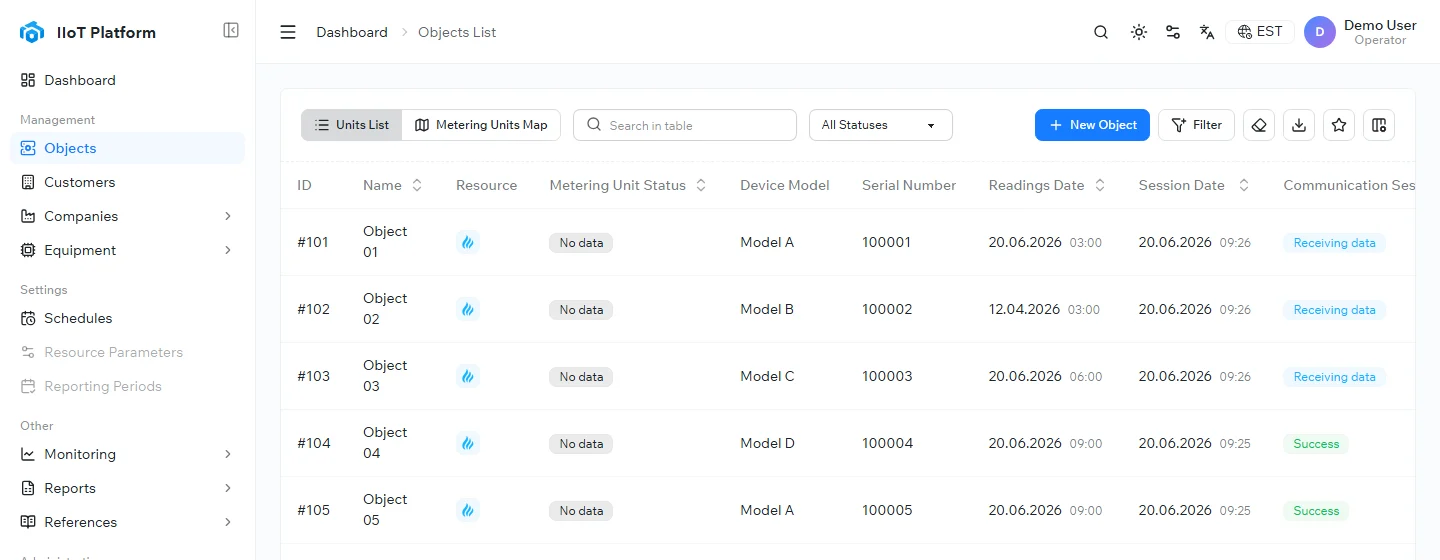
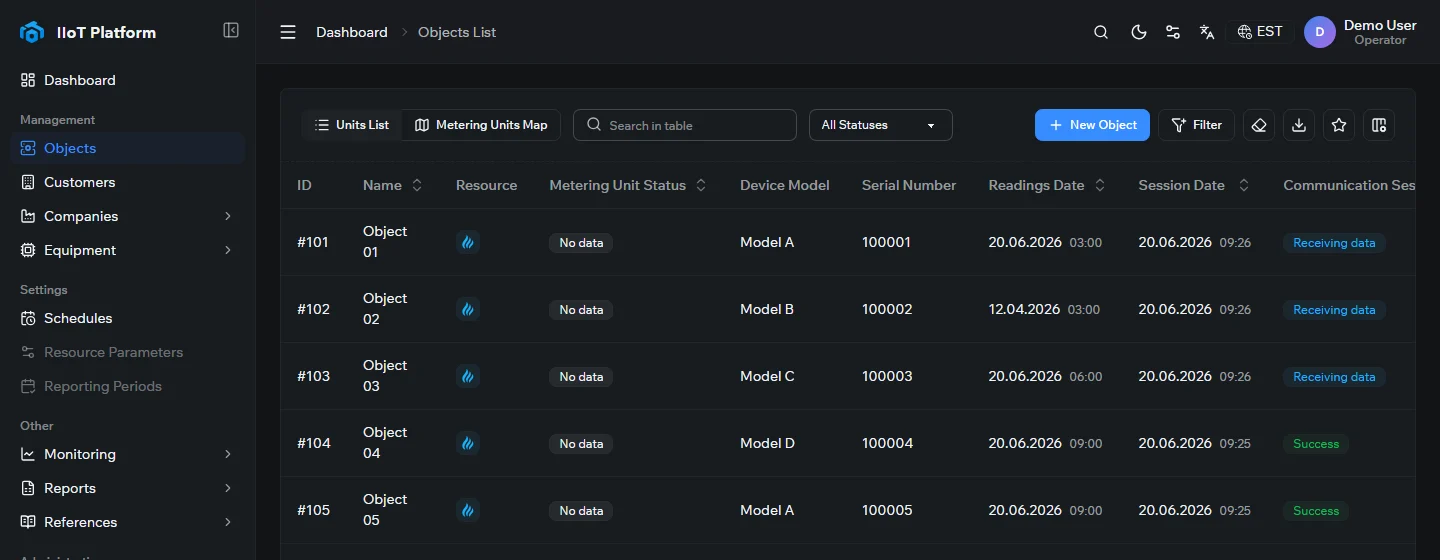
Each row summarizes one object’s current state:
- ID and Name — the object’s identifier and label.
- Resource — the metered resource (for example gas, water, or electricity).
- Metering Unit Status — the object’s operational status.
- Device Model and Serial Number — the connected metering device.
- Readings Date / Session Date — when the latest readings and the last communication session were recorded.
- Communication Session Status — the result of the most recent session (for example, Success or Receiving data).
- Actions — view or edit the object.
Finding objects
- Search — type in Search in table to filter rows by name or other fields.
- Filter by status — use the All Statuses dropdown, or open Filter for more conditions.
- Sort — select a sortable column header to order the list.
- Columns and export — choose which columns are shown, and download the list with the export control.
Map view
Switch to Metering Units Map to see your objects placed geographically. The map helps you spot issues by area and navigate large deployments visually.
Creating an object
Select + New Object to open the step-by-step wizard that builds the object’s card.
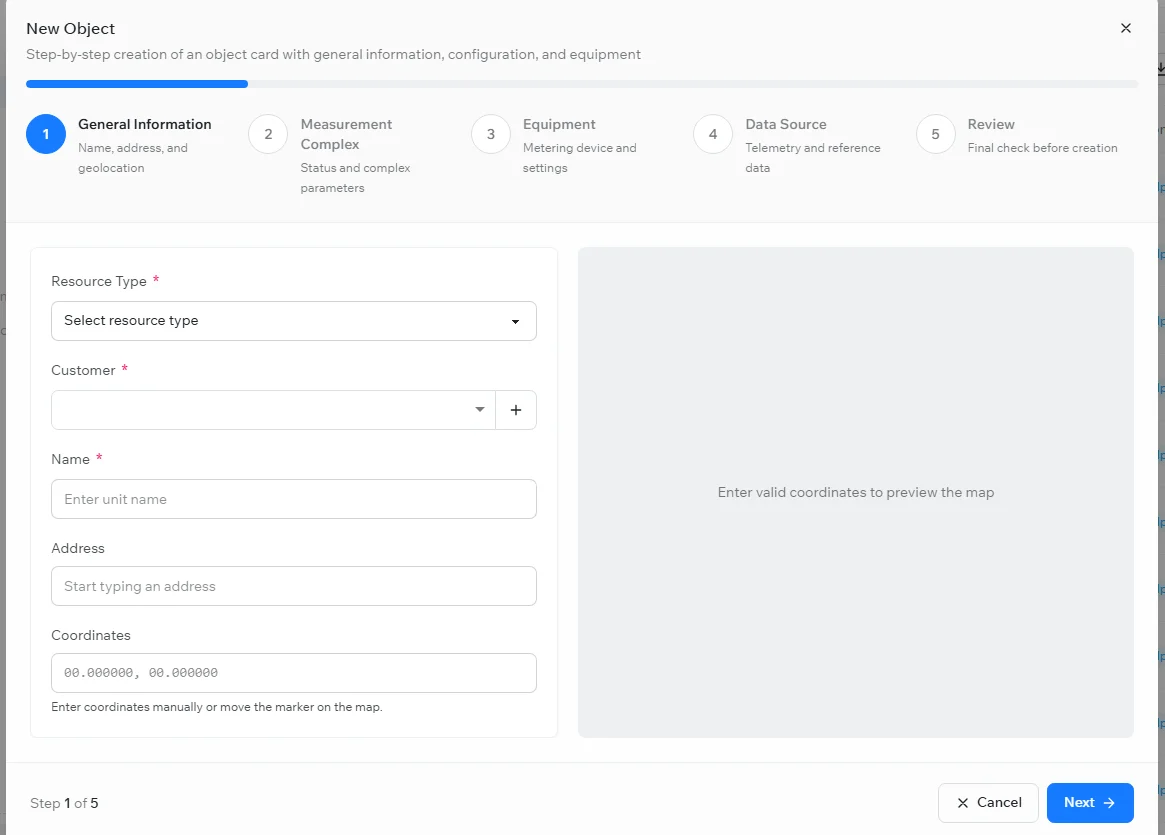
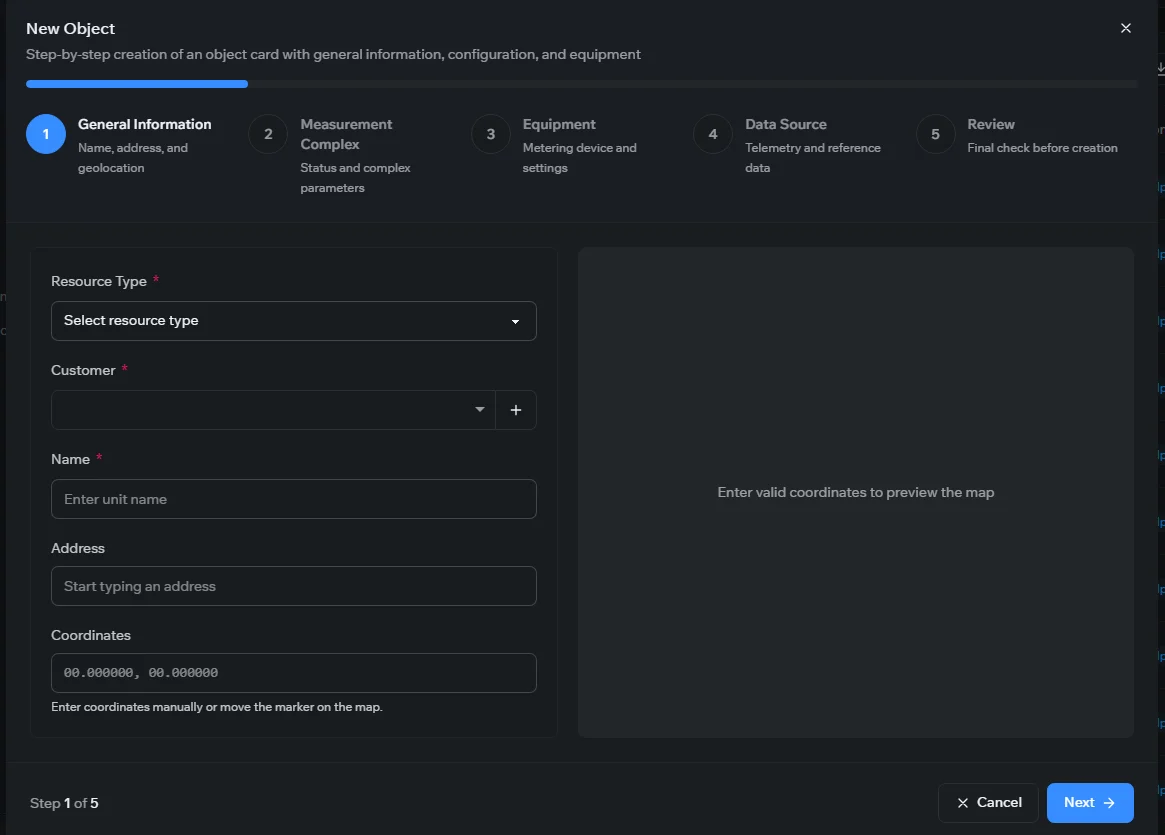
The wizard walks through five steps:
- General Information — the resource type, the customer, and the object’s name, address, and geolocation (enter coordinates manually or place the marker on the map).
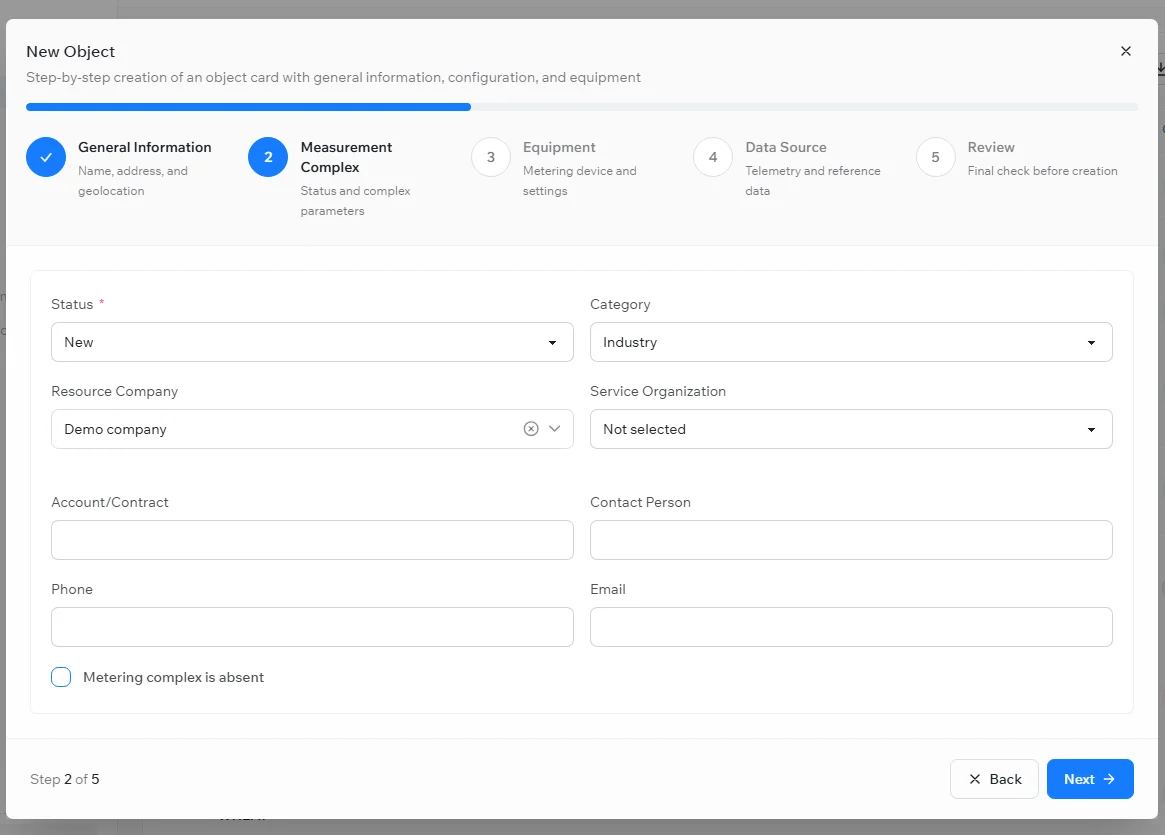
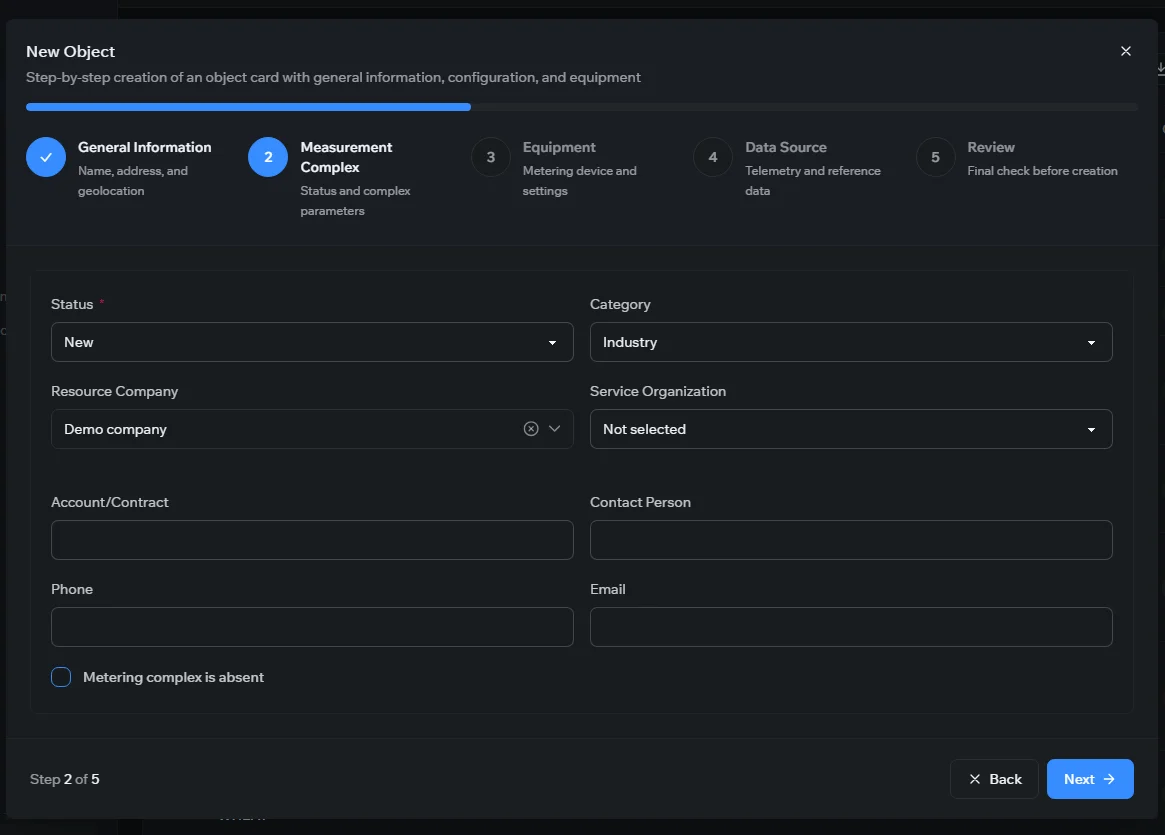
- Measurement Complex — the object’s status and category, the resource-supply and service companies, the account or contract, contact details, and whether a metering complex is present.
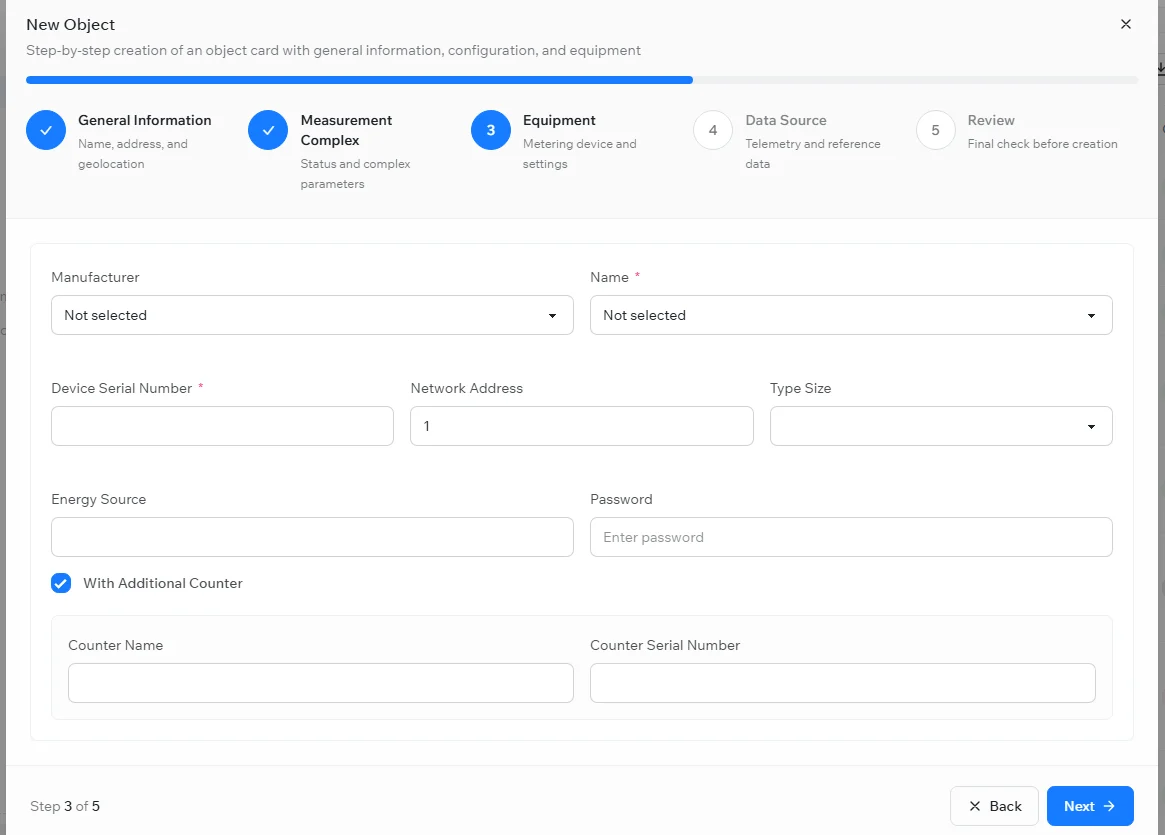
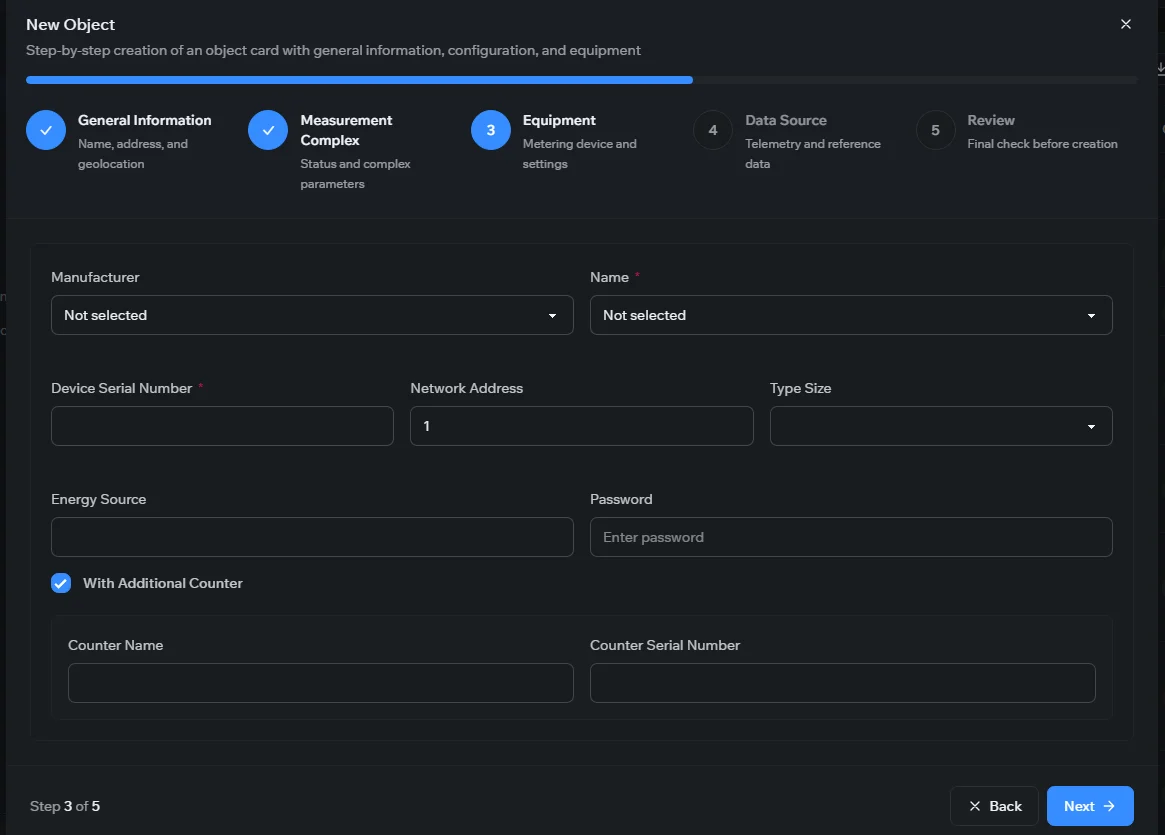
- Equipment — the metering device (manufacturer and model) and its settings, together with any auxiliary equipment installed on the object — sensors, shut-off valves, and so on.
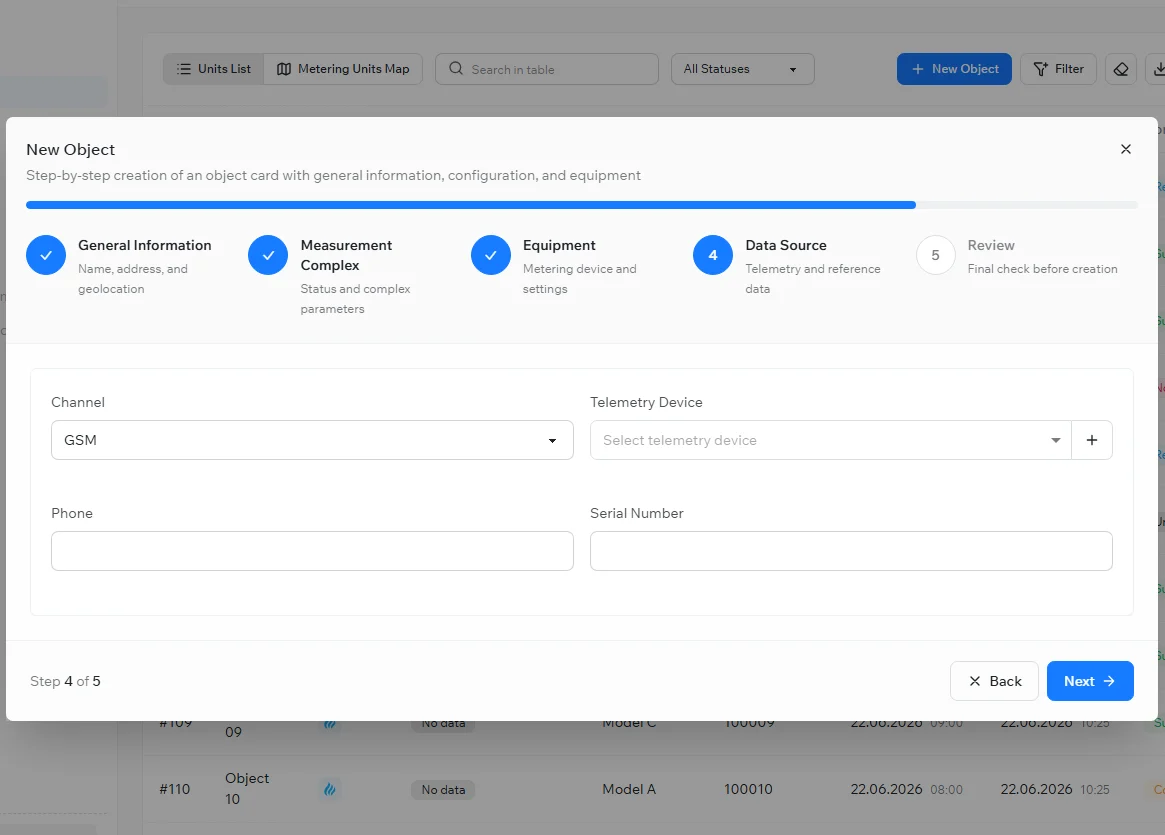
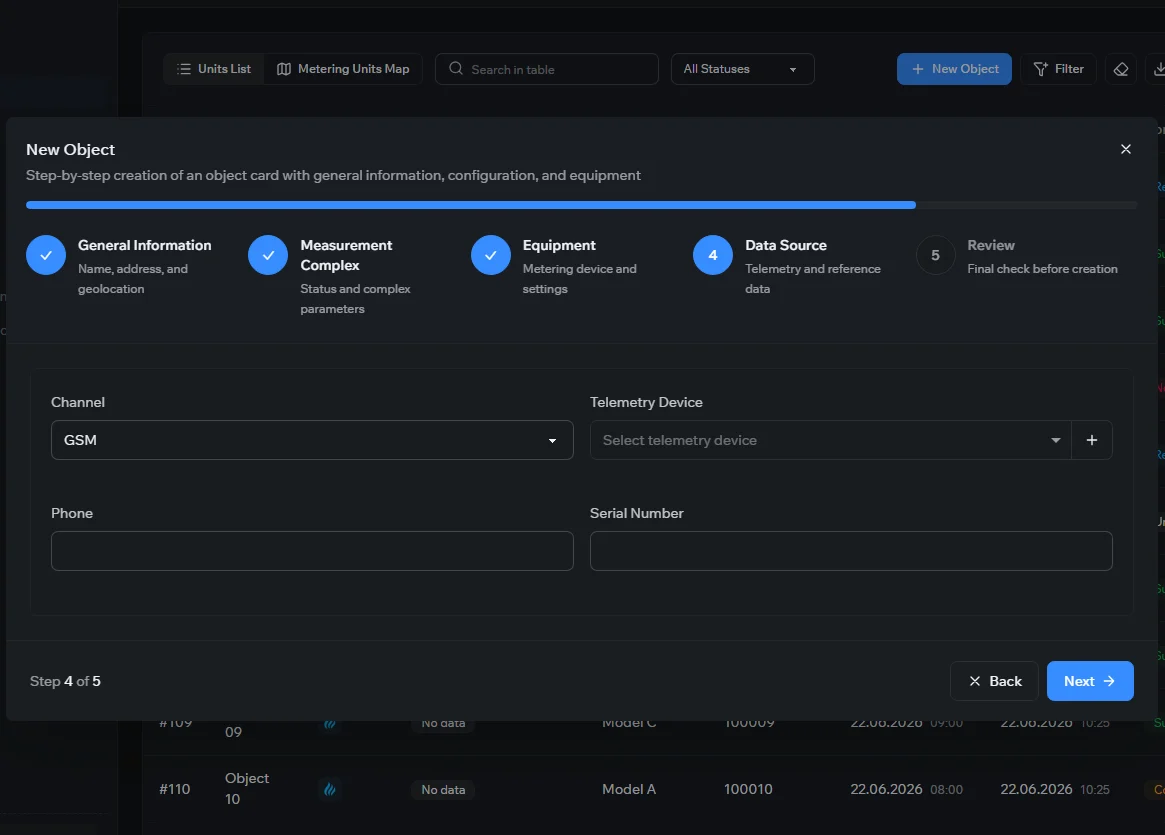
- Data Source — how the object’s telemetry reaches the platform, and the related reference data.
- Review — a final check of everything before the object is created.
On the Measurement Complex step you set the object’s status and category, its resource-supply and service companies, the account or contract, and contact details, and mark whether a metering complex is installed:
The Equipment step configures the metering device — manufacturer, model, serial number, network address, type size, and energy source — and can add an additional counter alongside the main one:
On the Data Source step you choose how the object’s telemetry reaches the platform — the communication channel and the telemetry device:
Finally, the Review step shows a summary of everything you entered, grouped by section, so you can check it — or jump back to Edit any section — before the object is created:
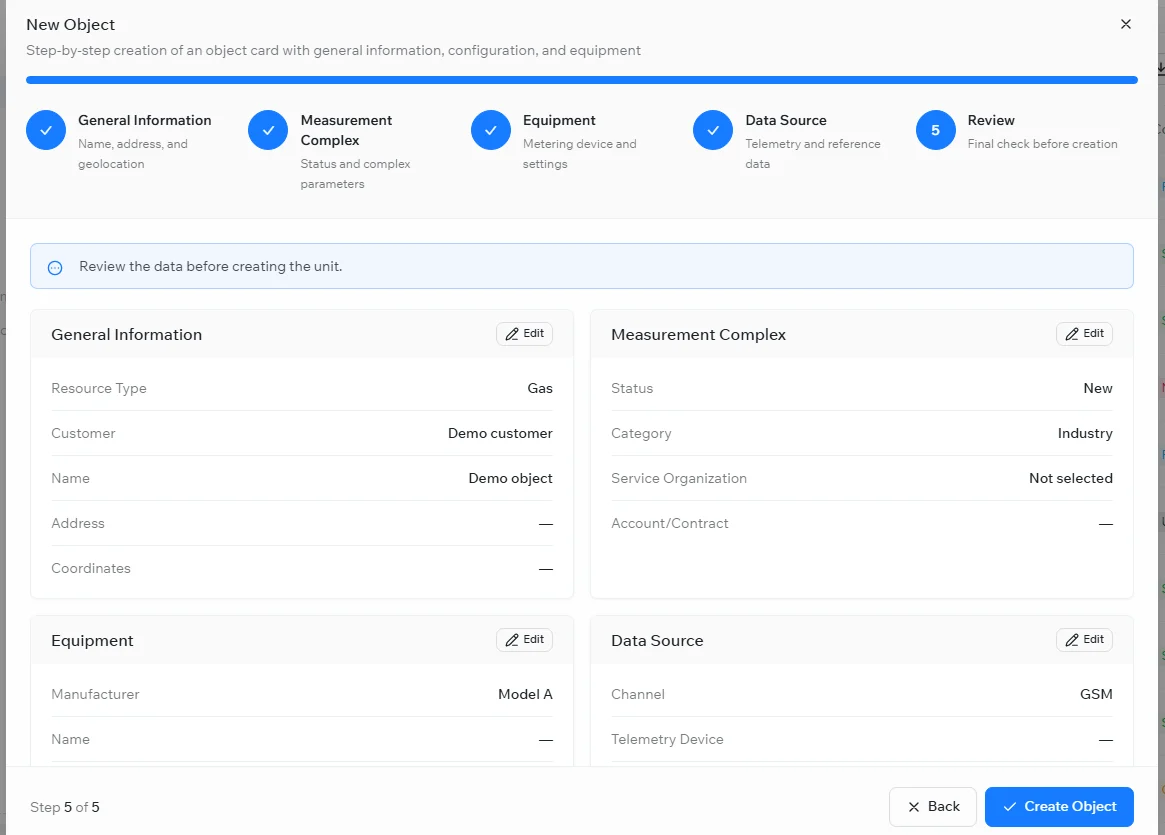
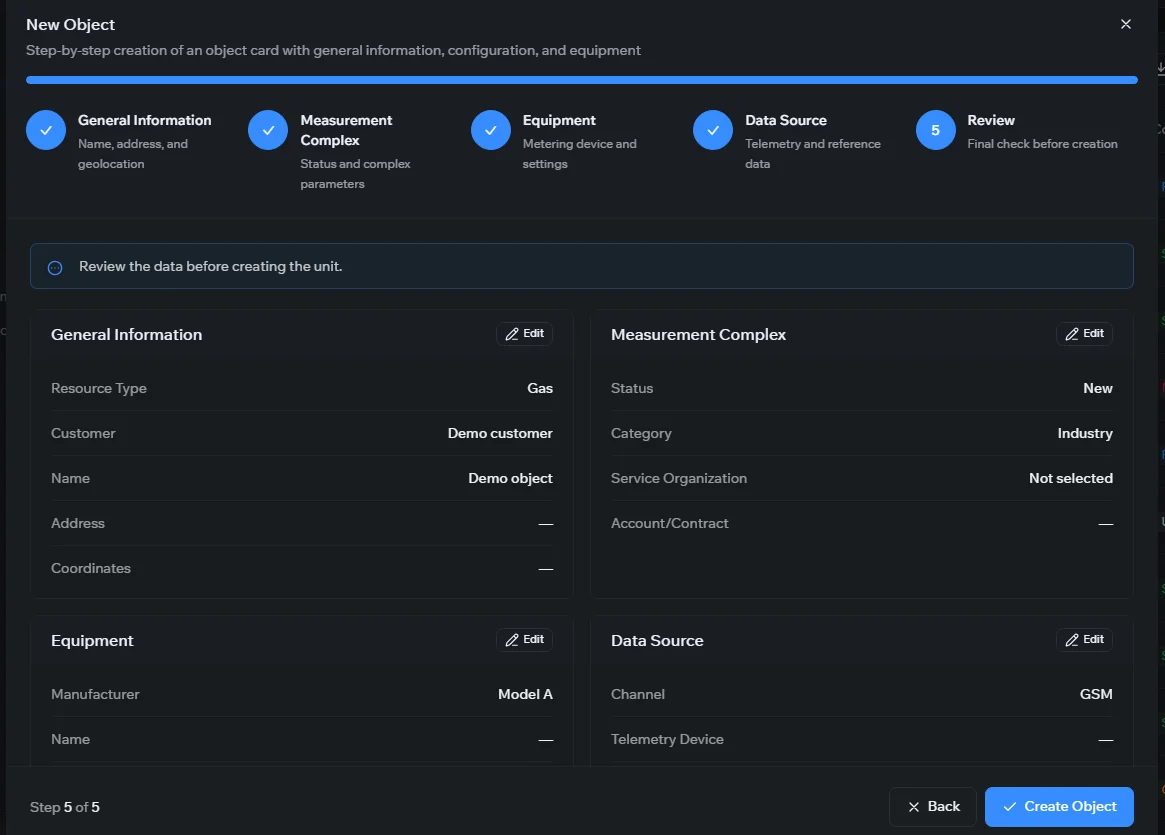
Use Next and Back to move between steps. Once you finish, select Create Object; it then appears in the list and starts reporting on its schedule.
Related topics
Was this page helpful?
Thanks for your feedback!