Signing in
How to sign in to the Data Platform, recover a forgotten password, and set your password, interface language, and time zone.
The platform opens at your organization’s address (for example, https://your-server). If you are not signed in yet, you are taken to the sign-in page automatically.
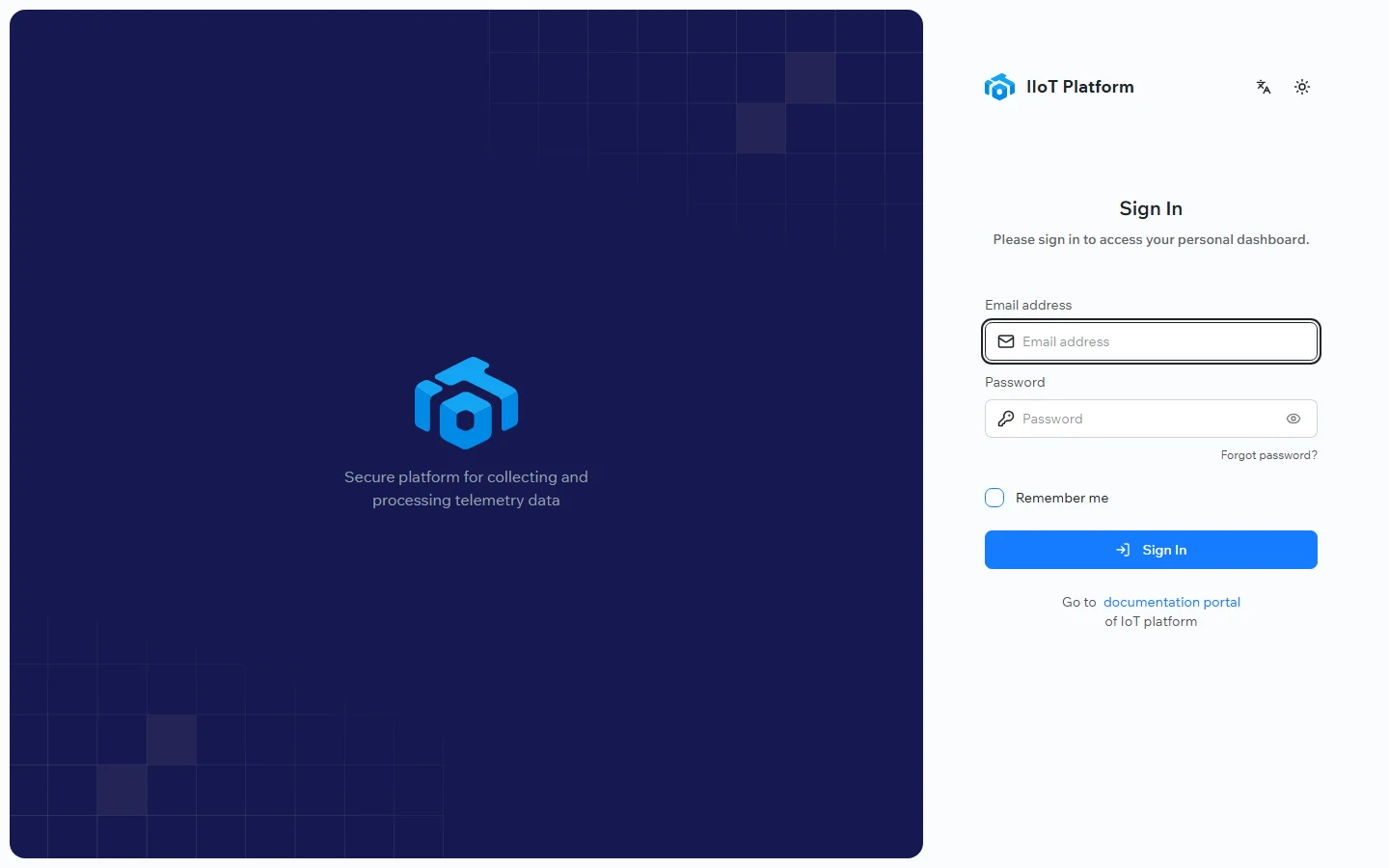
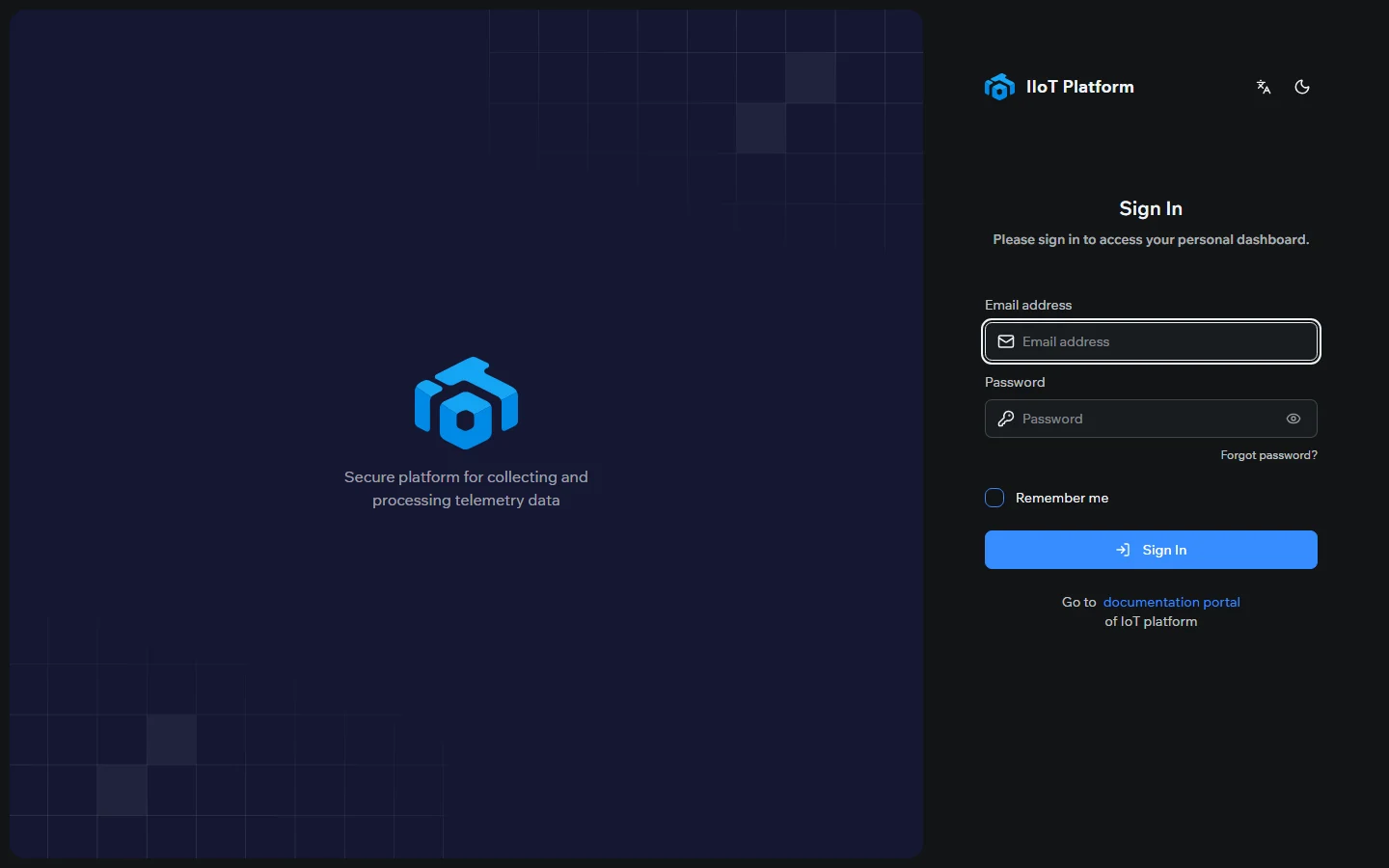
Signing in
Enter your credentials
On the sign-in page, type the email address and password issued to you by your administrator. Use the eye icon in the password field to reveal what you typed, and select Remember me to keep the session on a trusted device.
Sign in
Select Sign in. You land on the dashboard, the platform’s home page.
Forgot your password?
Select Forgot password? on the sign-in page and follow the instructions to reset it. Accounts are not self-registered — if you do not have one, contact your platform administrator.
Your profile
Open the profile menu from your avatar in the top-right corner and choose Settings. The Profile Settings page lets you review your account, change your password, and set your language and time zone.
Change your password
In Change Password, enter your current password and a new one. The new password must meet the security requirements shown on the page:
- at least 8 characters;
- lowercase and uppercase letters;
- at least one number;
- at least one special character.
Confirm the new password and select Save.
Change the interface language
The interface is available in several languages. Open the language switcher (the translate icon in the top bar, or the language option in your profile menu) and choose your language — for example, English. The interface reloads in the selected language, and your choice is remembered for next time.
Set your time zone
All timestamps — readings, communication sessions, and events — are shown in your default time zone, displayed in the top bar (for example, EST). Set the time zone that matches your location so that dates and times line up with your operations, then select Save.
Related topics
Was this page helpful?
Thanks for your feedback!