Platform and services installation
Installing the Data Platform — downloading the images, setting up Docker, and installing and verifying the system.
Downloading the installation files
You can download the Data Platform installation images in two ways.
When the server has no Internet access — for example, under an enterprise security policy — you can install the platform offline. The installation images are transferred to the server from external media.
When the server has Internet access, the installation images are pulled onto the server from a remote repository.
Installation steps
Copy the required data package
Copy the installation package to the server (administrator rights are required):
- Copy the downloaded
unicloud.tgzarchive and theimagesfolder (the standalone installation package with archived images) to the user’s home folder. The archive also contains thedocker-compose.ymland.envconfiguration files (.envis hidden, so enable showing hidden files).
-
images
- vadtel-nginx-latest.tar.gz
- vadtel-app-latest.tar.gz
- anytelemetry-latest.tar.gz
- pgbouncer-latest.tar.gz
- vadteljsondaemon-latest.tar.gz
- logrotate-latest.tar.gz
- postgres-15.1-alpine.tar.gz
- redis-6.0.16-alpine.tar.gz
- vector-latest.tar.gz
-
Copy the configuration files to
/opt/vadtelnewweb/. -
Set the system logins and passwords in the
.envfile:
.env#key SECRET_KEY_BASE=0356080kcn0ejgk4lwekrf #DB PGSQL login PG_APP_USER=ppppp #DB PGSQL password PG_APP_PASSWORD= ppppp #WEB interface login VADTEL_SUPER_ADMIN_EMAIL=NEED_USERNAME #WEB interface password VADTEL_SUPER_ADMIN_PASSWORD=NEED_PASSWORD #DB PGSQL unicloud login VADTEL_UNICLOUD_TEST_USERNAME=NEED_USERNAME #DB PGSQL unicloud password VADTEL_UNICLOUD_TEST_PASSWORD=NEED_PASSWORD- Copy the downloaded
Install Docker and Docker Compose
On a CentOS-based distribution
Install Docker and Docker Compose:
bashsudo dnf install docker-ce docker-composeStart Docker and enable it at boot:
bashsudo systemctl enable --now docker && systemctl start dockerOn a Debian-based distribution
Install Docker and Docker Compose:
bashsudo apt update sudo apt install docker docker-composeInstall the system
The remaining steps are the same on every operating system. Add the user that will run the application to the
dockergroup:bashsudo usermod -aG docker ${USER}Unpack the
unicloud.tgzarchive in the user’s home folder:bashtar -xf unicloud.tgz-
unicloud
-
run
-
db-unicloud
-
- remote_install.sh
-
init-db
- create_tables.sql
- script_conf.sh
- docker-compose.yml
-
logs
-
crontab
-
vadteljsondaemon
-
anytelemetry
-
-
backups
-
data
-
db-unicloud
-
-
local-images
- pgbouncer.tar.gz
- postgres.tar.gz
- vadteljsondaemon.tar.gz
- anytelemetry.tar.gz
- logrotate.tar.gz
- unicloud.service
-
Open the unpacked
unicloudfolder in the user’s home folder and run the installation script:bashsudo ./remote_install.shAfter the package installs, open
/var/lib/unicloudwith administrator privileges and change the owner and group of the.envfile to the current user.The script generates the database login and password in
/var/lib/unicloud/.env. Copy these values into/opt/vadtelnewweb/.env:bashVADTEL_UNICLOUD_TEST_USERNAME=NEED_USERNAME VADTEL_UNICLOUD_TEST_PASSWORD=NEED_PASSWORD-
Extract and load the images
Unzip the image files in the previously copied
imagesfolder:bashgunzip vadtel-nginx-latest.tar.gz gunzip vadtel-app-latest.tar.gz gunzip anytelemetry-latest.tar.gz gunzip pgbouncer-latest.tar.gz gunzip vadteljsondaemon-latest.tar.gz gunzip logrotate-latest.tar.gz gunzip postgres-15.1-alpine.tar.gz gunzip redis-6.0.16-alpine.tar.gz gunzip vector-latest.tar.gzLoad the images into Docker:
bashdocker load -i vadtel-nginx-latest.tar docker load -i vadtel-app-latest.tar docker load -i anytelemetry-latest.tar docker load -i pgbouncer-latest.tar docker load -i vadteljsondaemon-latest.tar docker load -i logrotate-latest.tar docker load -i postgres-15.1-alpine.tar docker load -i redis-6.0.16-alpine.tar docker load -i vector-latest.tar.gzCheck that the images are available:
bashdocker imagesAll nine images you loaded should appear in the list.
If the images loaded without errors, run the following command from the
/var/lib/unicloudfolder:bashdocker-compose up -dCreate a directory for the
vadtelnewwebapplication under/opt:bashsudo mkdir /opt/vadtelnewweb cd /opt/vadtelnewwebThen copy the
docker-compose.ymland.envfiles (if you didn’t copy them earlier for a new installation) to/opt/vadtelnewweb.On the first run, create the database:
bashdocker-compose run app bundle exec rails db:createNow start the application:
bashdocker-compose up -dTroubleshooting
If the application reports the following error after startup:
bashnetwork unicloud_unicloud-net declared as external, but could not be foundthe external network was not created during installation. Perform the initial installation from the
unicloud.tar.tgzarchive as described in Install the system, then start the application again:bashdocker-compose up -dCheck the running containers:
bashdocker psAll containers should be listed with status
Up.Check the system
After the application starts, open the IP address of the server it runs on in your browser to confirm that the system is up:
bashhttp://127.0.0.1/auth/users/sign_in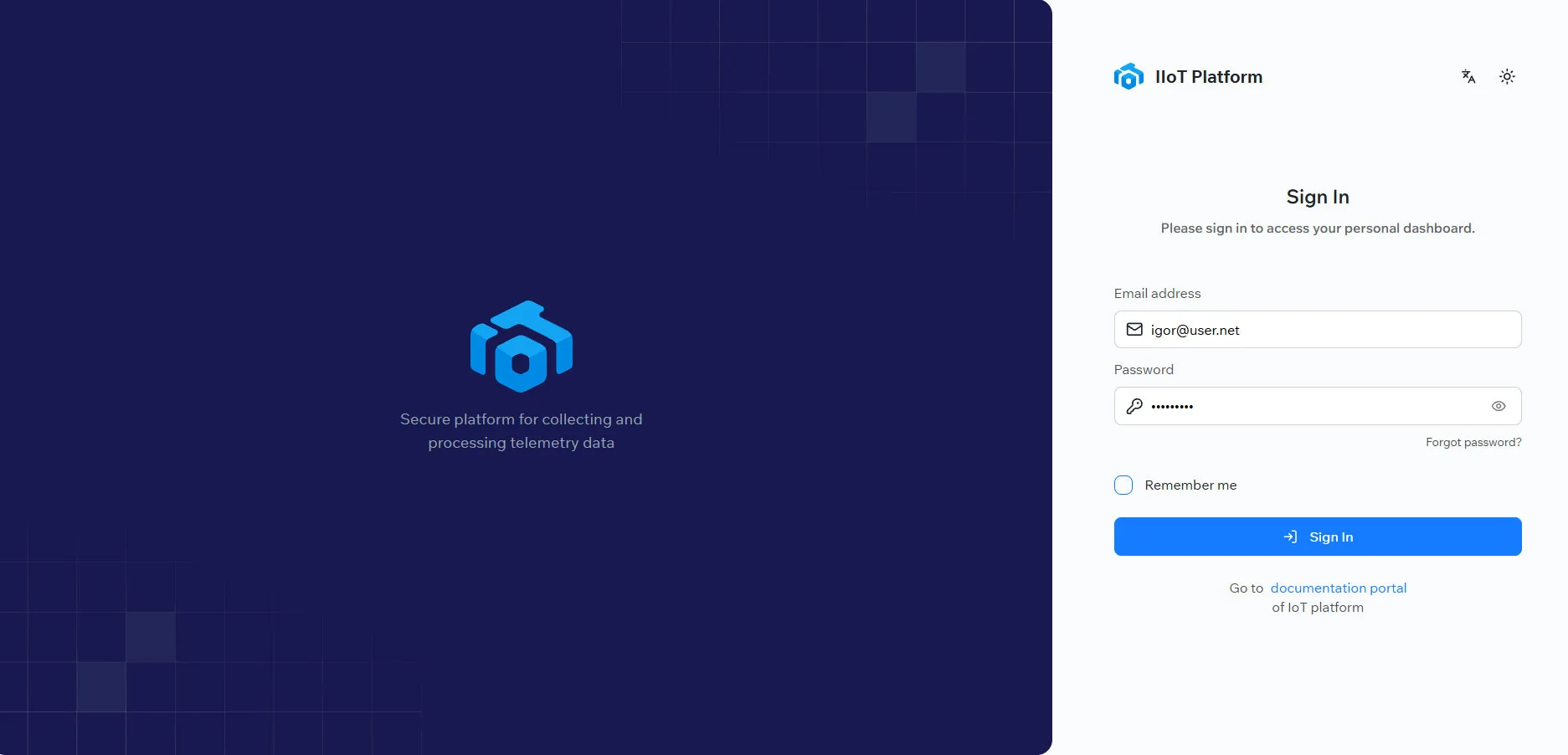
Data Platform sign-in page The sign-in email and password are set in
/opt/vadtelnewweb/.env:.envVADTEL_SUPER_ADMIN_EMAIL= (login) VADTEL_SUPER_ADMIN_PASSWORD= (password)
Next steps
With the platform installed and running, set it up to update cleanly and to restart automatically with the server.
Related topics
Was this page helpful?
Thanks for your feedback!